
Connecting ProLiant and Alice

To connect ProLiant to Alice, create an Administrator user for Alice, then add four deduction codes (PRKAD, TRAAD, PTPRK, and PTTRA).
The phone number and email address below are for internal payroll purposes only. If you need to reach our team, call or text us at (929) 552-4625.
Part 1: Set up Alice as an admin
-
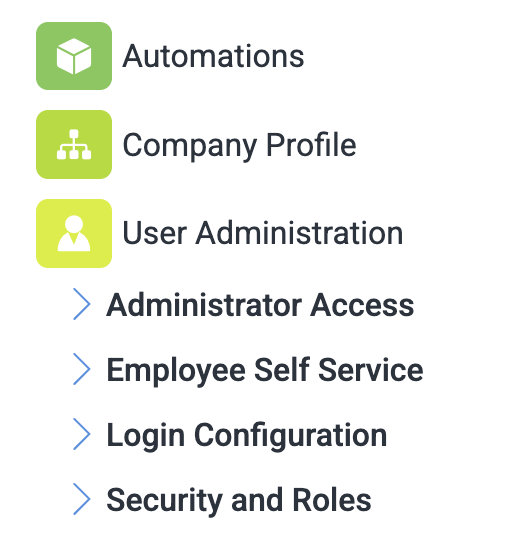
Log in to ProLiant, select the Gear in the top right corner, then go to User Administration and Administrator Access.

- Select Add.
- Role Type: leave ESS (Employee Self-Service) unselected. It is only for employee password resets and is not needed.
- Security Role: Administrator
- Company: select your company or paygroups. If you have more than one company in ProLiant, select all that apply.
- Fill in the user details:
- First Name: Alice
- Last Name: Financial
- Password: the temporary password Alice sends you (Alice changes it on first login)
- Cell Phone: 917-336-9115
- Email: alice@thisisalice.com
- Select Save.
- Work through the permissions screens:
- Payroll schema (payroll codes): keep enabled
- Reports: keep enabled (required)
- Benefits: keep enabled (needed for benefit codes)
- Hide bank information: yes, hide it
- SSN / pay rate: keep visible (needed for eligibility)
- HR: leave as-is
- No custom role needed
- Under Available Companies, confirm the correct company is checked, then select Save.
If you add companies to ProLiant later, return to this screen and grant Alice access to each new one.
Part 2: Add the deduction codes
-
Select the Settings gear icon in the top right corner.
-
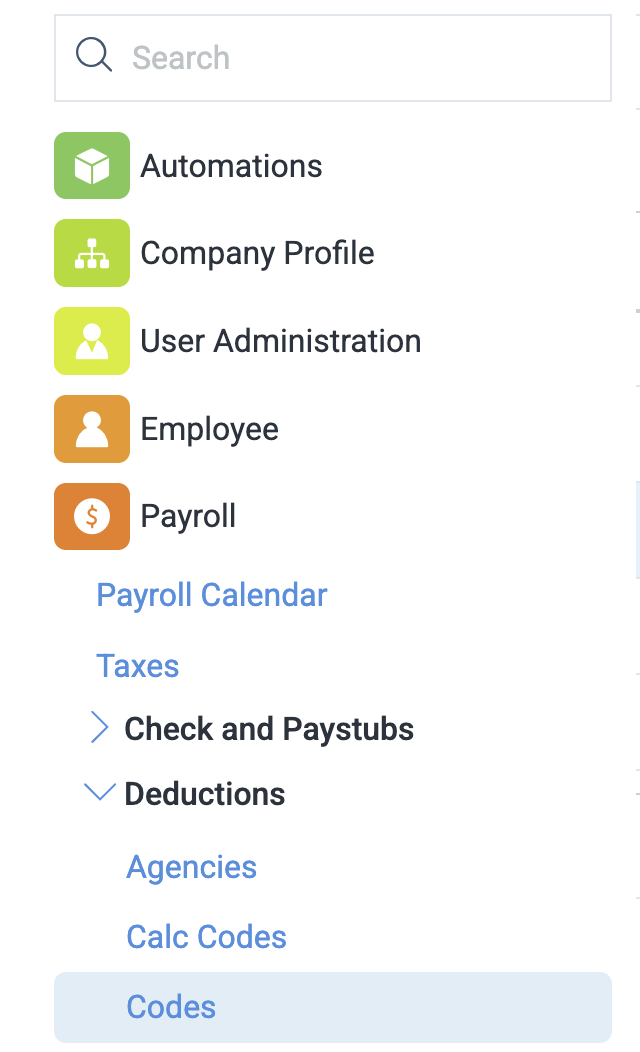
In the left-hand menu, go to Payroll > Deductions > Codes.
- Select Add New and enter the settings for each code below. Repeat for all four codes.
Once all four codes have been added, the Codes list should look like this:

PRKAD: Parking Addition
- Code: PRKAD
- Description: Parking Addition
- Type: Add - Add
- Show on Check: Y - Yes
- Calc Code: Flat
- Checkboxes: check Auto Drop, Partial Drop, and Active. Leave all others unchecked.
- Taxability, Override Setup, and Other Options: leave as-is
TRAAD: Transit Addition
- Code: TRAAD
- Description: Transit Addition
- Type: Add - Add
- Show on Check: Y - Yes
- Calc Code: Flat
- Checkboxes: check Auto Drop, Partial Drop, and Active. Leave all others unchecked.
- Taxability, Override Setup, and Other Options: leave as-is
PTPRK: Pretax Parking
- Code: PTPRK
- Description: Pretax Parking
- Type: 125 - 125
- Show on Check: Y - Yes
- Calc Code: Flat
- Checkboxes: check Auto Drop, Partial Drop, and Active. Leave all others unchecked.
- Taxability, Override Setup, and Other Options: leave as-is
PTTRA: Pretax Transit
- Code: PTTRA
- Description: Pretax Transit
- Type: 125 - 125
- Show on Check: Y - Yes
- Calc Code: Flat
- Checkboxes: check Auto Drop, Partial Drop, and Active. Leave all others unchecked.
- Taxability, Override Setup, and Other Options: leave as-is
Email payroll@thisisalice.com once this is complete.
Need help?
Email admin-support@thisisalice.com or call (929) 552-4625.
Trademarks, brands, and product names referenced in this article are the property of their respective owners. References are for descriptive purposes only and do not imply endorsement. For definitive information about a third party's products or services, contact that party directly.